
Step 1
Access Your Account Anytime
Log into your account through the official platform or mobile app using your registered credentials. The process takes seconds and works on any device you registered from. Once you verify your identity and complete the initial setup, you can access sports markets, casino games, bonuses and payment options around the clock. Your personal information stays protected through encryption and optional two-factor authentication for added security.
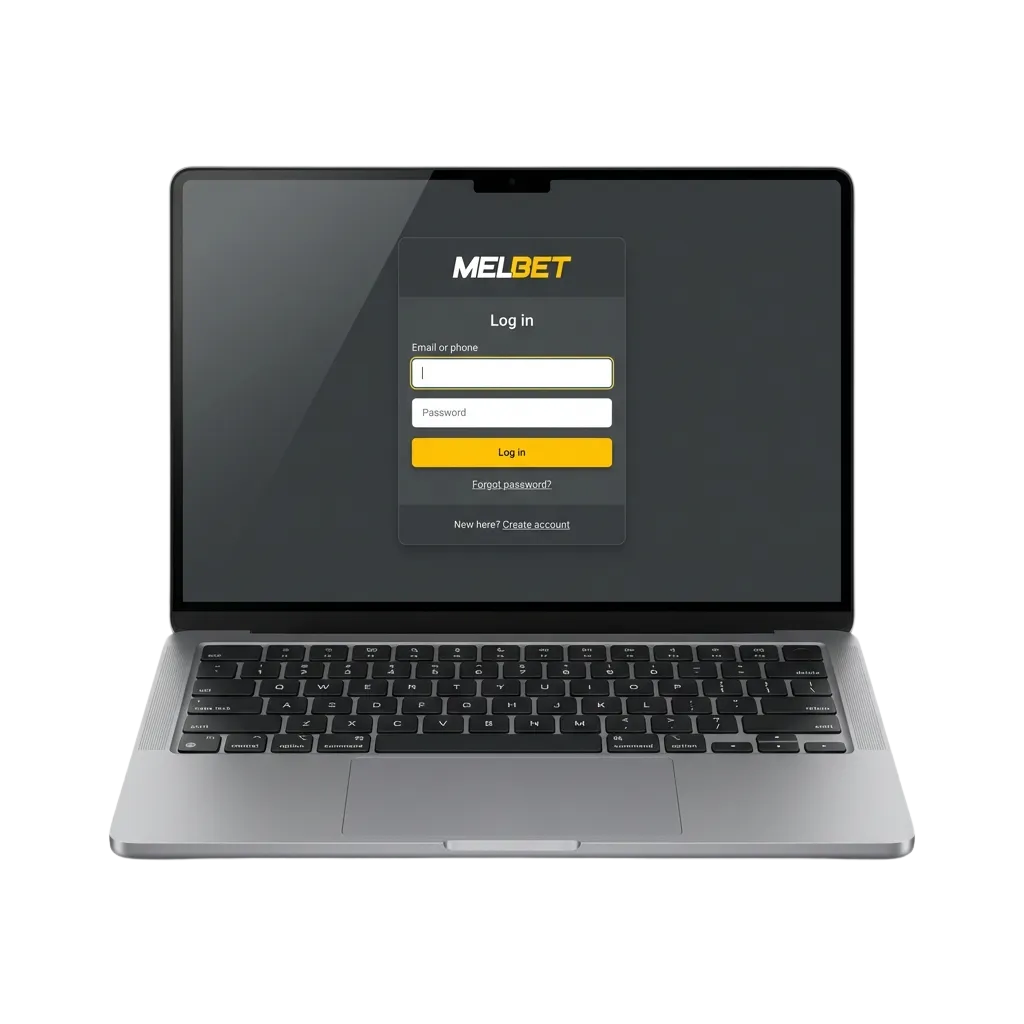
How to Access Your Profile
You can sign in using several methods that match how you created your profile. Available options include email and password, phone number and password, social media profiles linked during registration.
Email Address Method
This standard approach works for users who registered with an email during signup. You enter your registered email address and the password you created, then tap the sign-in button to access your dashboard. The system confirms your credentials within seconds and redirects you to the main screen where all betting markets and casino games appear.
Signing In Through the Mobile App
The mobile application offers faster access compared to browser-based sessions because it stores your device information after the first successful entry. Follow these steps to access your profile through the app:
Step 2
Open the installed application and tap the “Log In” button on the welcome screen.
Step 3
Choose your preferred method (email, phone number or social media) and enter your credentials in the fields that appear.
Step 4
Tap the confirmation button to verify your details and access your dashboard.
Step 5
Log In
Enable biometric authentication if your device supports fingerprint or face recognition for quicker future entries.
Common Access Issues and Fixes
Some technical or user-related problems can prevent you from reaching your dashboard. Here are the most frequent obstacles and their solutions:
| Problem | Solution |
|---|---|
| Incorrect password error | Double-check your typed password for typos, ensure caps lock is off, and verify you’re using the password created during registration. Use the recovery option if you’ve forgotten it. |
| Account locked after multiple failed attempts | Wait 15–30 minutes before trying again. Contact support if the lock persists beyond this period. |
| Email or phone number not recognized | Confirm you’re entering the exact details used during registration. Check for extra spaces or incorrect characters. |
| Two-factor authentication code not arriving | Check your spam folder for emails, ensure your phone has network coverage for SMS, and request a new code if the first one expires. |
| Page not loading or connection errors | Clear your browser cache and cookies, try a different browser or device, or check your internet connection stability. |
Resetting Your Access Code
If you can’t remember your password, the recovery tool helps you create a new one through a secure verification step. Here’s the complete procedure:
Step 1
Click the “Forgot Password” link displayed below the entry fields on the main page.
Step 2
Enter your registered email address or phone number in the recovery form that appears.
Step 3
Check your inbox or messages for a verification code or reset link sent by the system (this usually arrives within 2–5 minutes).
Step 4
Follow the instructions in the message to create a new password that meets the security requirements (minimum 8 characters, mix of letters and numbers).
Step 5
Return to the main screen and use your new credentials to access your profile.
Frequently Asked Questions
Can I use the same credentials on multiple devices?
Yes, your username and password work across all platforms including desktop browsers, mobile browsers and native applications. The system syncs your data automatically, so changes made on one device appear on others immediately.
What should I do if someone else accessed my profile?
Change your password immediately through the recovery process, enable two-factor authentication for extra protection, and contact customer support to review recent activity on your profile. The team can help secure your funds and investigate unauthorized access.
How long does a session stay active before automatic logout?
Browser sessions typically remain active for 24 hours of inactivity, while mobile app sessions can persist longer if you enable the “remember me” option. For security reasons, sensitive operations like withdrawals may require re-authentication even during an active session.
Why does the system ask for additional verification during certain logins?
The platform monitors unusual patterns such as access from new devices, different geographic locations or repeated failed attempts. These security checks protect your funds and personal information from unauthorized users.
Can I disable two-factor authentication after enabling it?
Yes, you can turn off this feature through your profile settings under the security section. However, keeping it active provides stronger protection against unauthorized access, particularly when making withdrawals or changing sensitive information.
Updated: